SVN Checksum Mismatch: A TortoiseSVN Recovery Checklist
Content edited . This editorial update does not represent a new runtime test.
On this page
An SVN checksum mismatch while updating means content being checked does not match its expected checksum. Preserve the working copy before attempting recovery. The historical TortoiseSVN workaround below is a candidate to investigate, not a universal repair. A fresh checkout into a separate directory provides an independent check without destroying local work.
First record the error and protect local changes
Keep the complete error message, affected file path, repository URL, client version and working-copy revision. If SVN commands fail because metadata is damaged, make a full filesystem backup before trying any recovery, and record which commands failed.
For a working copy that still accepts read commands, this command-line equivalent saves evidence outside it. Run from its root in a POSIX shell; use an unused sibling directory:
mkdir ../svn-recovery-evidence
svn --version --quiet > ../svn-recovery-evidence/client-version.txt
svn info > ../svn-recovery-evidence/info.txt
svn status > ../svn-recovery-evidence/status.txt
svn diff > ../svn-recovery-evidence/local.patch
Check each command’s exit status and open the saved files. A failed diff is not a usable backup. svn status marks unversioned files with ?; ignored files require a separate svn status --no-ignore inspection. Copy untracked, ignored, binary and locally deleted/renamed files as needed into the backup, preserving their intended relative paths. Do not copy passwords or publish this evidence directory.
A text patch does not contain the payload of modified binary files or unversioned files. A complete filesystem copy is the fallback for valuable work. Keep it until restoration and project tests pass. Never delete or hand-edit .svn metadata as a first step.
Historical TortoiseSVN update-depth workaround
- In the affected directory, choose TortoiseSVN → Update to revision.
- Record the revision and existing depth. The original screenshots show an update using Only this item, followed by another using Fully recursive.
- Use the same intended revision for both attempts. Read the dialog’s depth and sticky-depth options before applying them; do not change a deliberate sparse checkout to a full checkout without checking its scope.
- If it fails again, stop repeating it and preserve the new error for comparison.
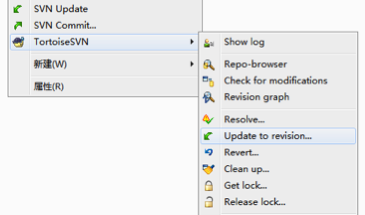
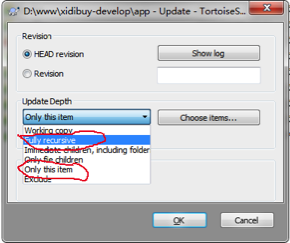
TortoiseSVN’s update documentation explains revision and depth controls, and how updates interact with local changes. These historical screenshots are not proof that this procedure repairs the current error. Shrinking or expanding depth can affect which files are present; review the resulting status rather than assuming the local work is untouched.
Recover in a separate checkout
Use the repository URL recorded by svn info and an explicit numeric revision. The values below are examples: replace them with your own URL and revision, and choose an output directory that does not already exist. This recipe assumes a single URL at one revision; mixed-revision, switched or sparse working copies need their per-path layout recorded separately.
# Run from the original working-copy root; leave it in place.
audit_repo_url='https://svn.example.com/repos/project/trunk'
audit_revision='1234'
svn checkout -r "$audit_revision" "$audit_repo_url" ../project-recovered
cd ../project-recovered
svn patch --dry-run ../svn-recovery-evidence/local.patch
Do not continue unless checkout succeeded and the dry-run results are understood. svn patch requires Subversion 1.7 or later; see the Subversion command reference. A patch from a different base revision can conflict or apply with offsets. Review every hunk instead of treating an exit code alone as proof that the intended change was restored.
svn patch ../svn-recovery-evidence/local.patch
svn status
svn diff
Now restore the separately backed-up files into their intended paths, without copying the old .svn directory over the new metadata. For example, if notes.txt was untracked and its backup is in the evidence directory:
cp ../svn-recovery-evidence/notes.txt ./notes.txt
svn status
Compare the restored file with the backup before choosing whether to version it. Restore binary edits from their backups, and reconcile moves/deletions against the saved status. Do not automatically svn add everything. Do not commit as part of recovery.
Interpret the result and verify recovery
- Separate checkout succeeds: compare revisions and restored changes, then build or test the project. This narrows the problem but does not identify the original corruption’s cause.
- Separate checkout fails on the same path/revision: keep both logs. Ask the repository administrator to investigate that revision and the transport path; repeated local deletion is not evidence of repair.
- Patch has rejected hunks or missing files: keep both working copies and resolve the mismatch manually from backups before using the recovered project.
Before considering recovery complete, record the exact successful checkout/update command, confirm the intended revision and sparse/switched layout, compare all local changes and separately saved files, and run the project’s actual tests. Only then choose the recovered copy for continued work.
Verification evidence for this editorial update (2026-10-14): the four shell blocks passed zsh -n syntax checks. No svn or svnadmin executable was available on PATH or in the checked Homebrew locations, so checkout, patch application and the TortoiseSVN GUI workaround were not executed. No checksum failure was reproduced and no runtime recovery is claimed. The two local screenshots remain available in the Hugo output.
Related: GitHub SSH host-key failures are a separate trust-verification problem.